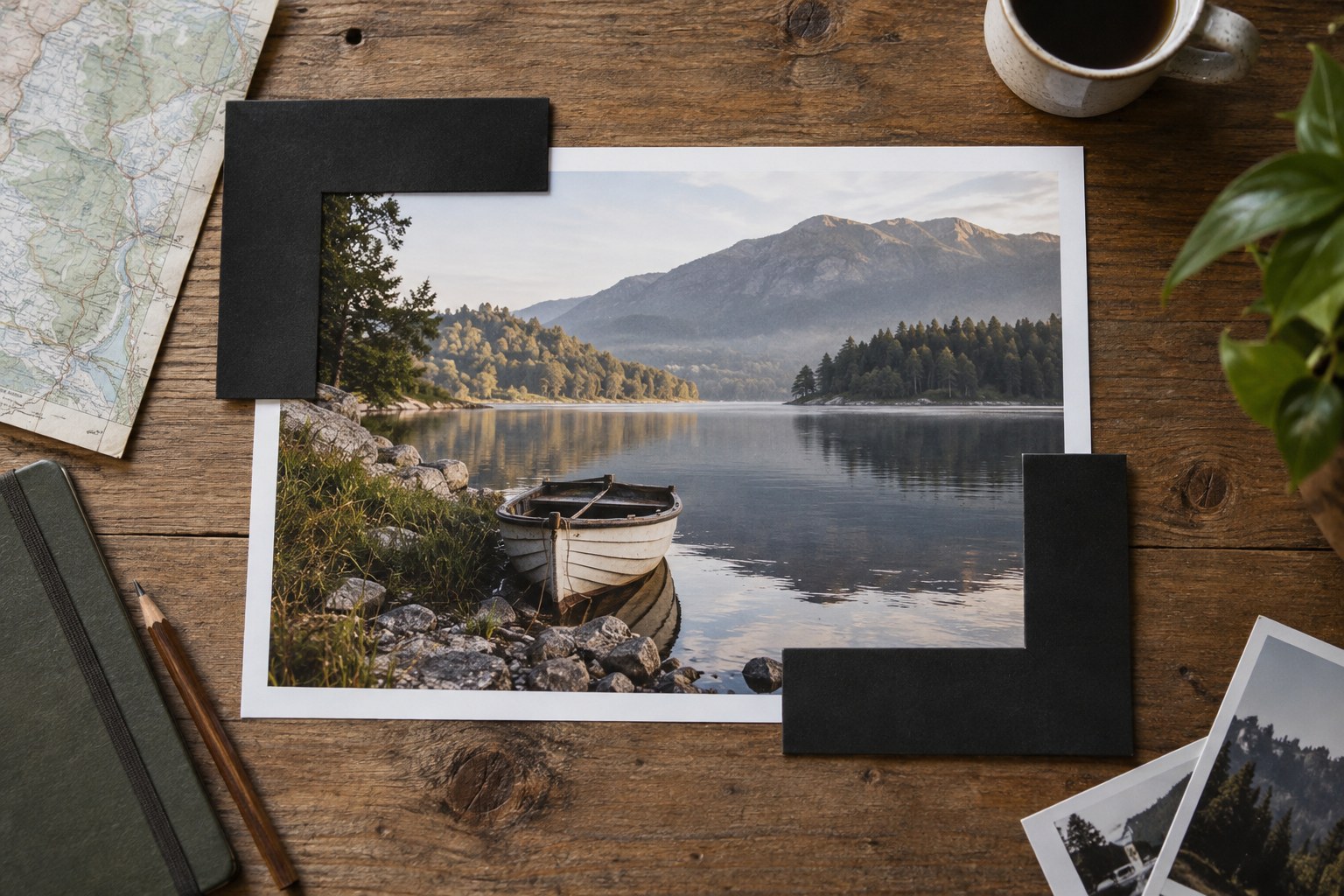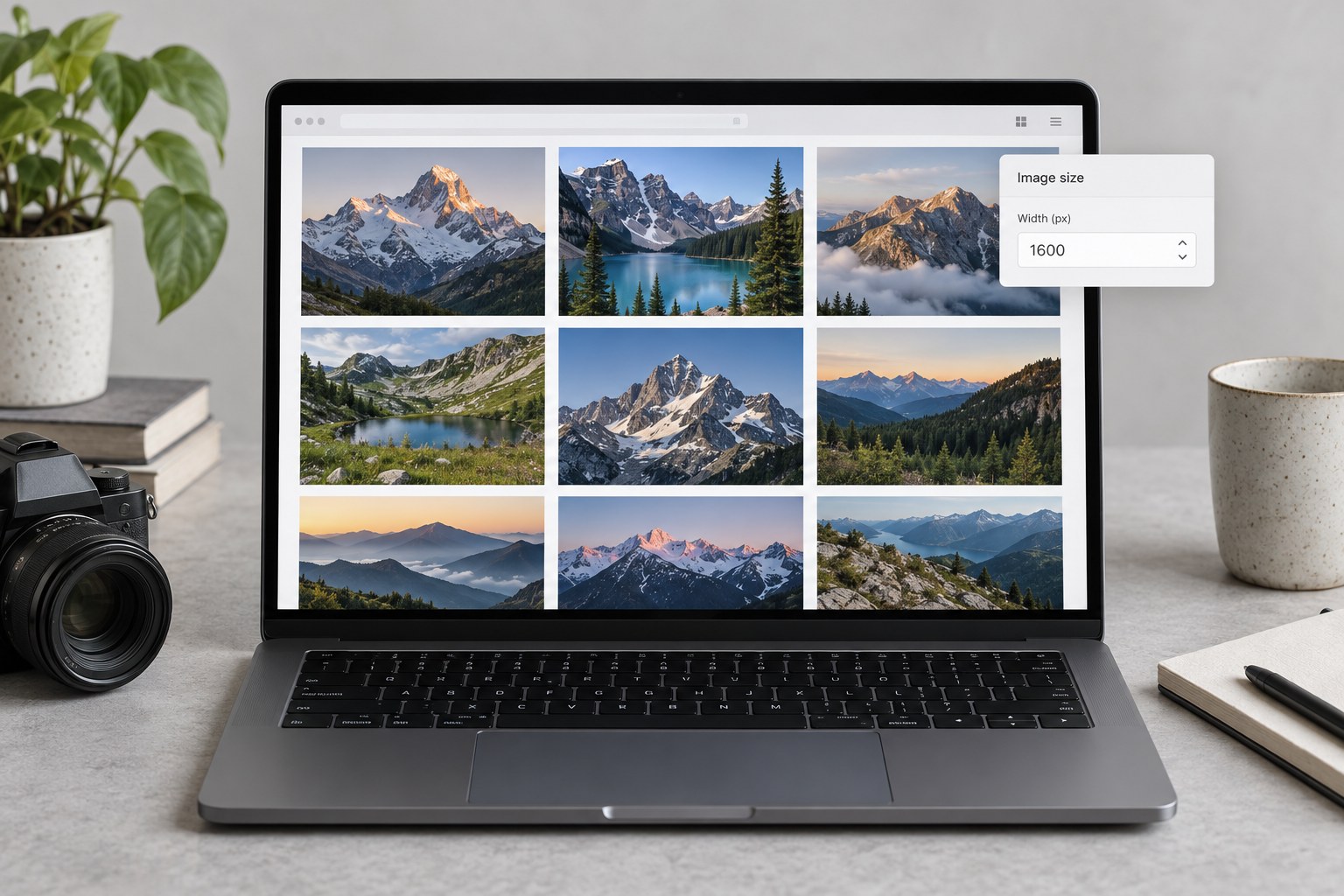
A gallery thumbnail and an image opened across a large monitor do different jobs. Exporting one enormous file for both can waste bandwidth; exporting only a small thumbnail can leave the enlarged view soft. Before changing the photograph, establish which image sizes the gallery actually uses. Some systems create smaller derivatives from an uploaded original, while others serve exactly the file you provide.
Work on an export copy. Keep the original photograph and its editing instructions in the archive so that a future gallery size does not depend on enlarging an already reduced JPEG. Give the export folder a clear purpose, such as a particular collection and delivery date, rather than mixing display files with originals.
Start with the displayed dimensions
Suppose a photograph occupies a box about 1,200 CSS pixels wide on a desktop layout. A 1,200-pixel export supplies one image pixel per CSS pixel; a denser screen can benefit from more pixels. That does not mean every gallery should receive a file twice as large. Check the site's responsive image behaviour, upload limits and actual enlarged view before deciding. Test one detailed photograph and one with smooth tonal areas, since they expose different weaknesses.
Preserve the photograph's intended proportions unless the gallery requires a crop. A square thumbnail may be generated separately from the full image. Check that this crop keeps the subject visible, especially with a face near the edge or a narrow vertical composition. A larger source cannot repair an unsuitable crop selected by the layout.
Judge the file the visitor receives
Open the exported image at its actual display size. Look for blocky transitions in skies, ringing around high-contrast edges and smeared fine detail. Compare two compression settings using the same pixel dimensions. The larger file is justified only if it makes a useful visible difference. A sharpness adjustment should follow resizing; excessive sharpening can make a small photograph look brittle without restoring detail.
Check colour in the delivery environment as well as in the editor. Follow the gallery's documented colour-space requirements and keep the appropriate profile embedded. Do not assume that changing a filename extension converts the file format or that a print-resolution number determines its onscreen size. Pixel dimensions and the page layout control the latter.
Finally, load a representative gallery page over an ordinary connection and open the large view. Verify that portrait photographs, landscape photographs and captions work together. Record the export dimensions, format and destination in a short preset name or note. A repeatable export is useful because it can be revised deliberately when the gallery changes, not because one set of numbers works forever.