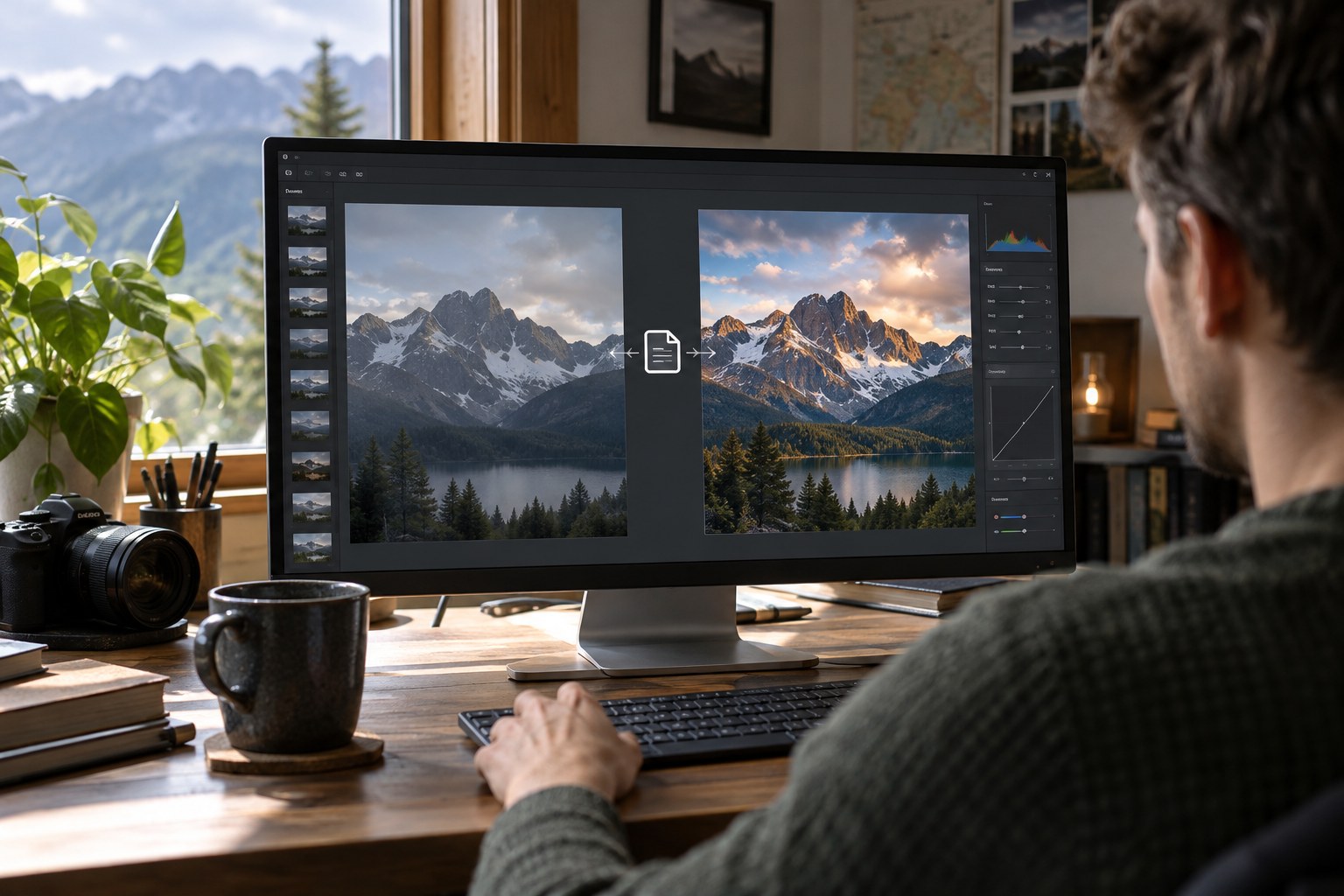
The RAW file contains the camera's recorded source data, while many editors store adjustments as instructions rather than rewriting that source. Those instructions might live in a database, a sidecar beside the image, or an application-specific project. The preview you see in the editor is therefore not proof that another program will reproduce the same appearance from the RAW alone.
Find out how your chosen application saves changes. Adobe Lightroom Classic, for example, stores metadata changes in its catalog by default, with supported information transferable through XMP. The details and supported editing data can vary by software and version. Treat a sidecar as part of the workflow, but do not assume that it replaces every catalog feature or guarantees identical rendering in an unrelated editor.
Test the connection on a copied sample
Choose a photograph with obvious but ordinary edits, such as a crop and exposure adjustment. Copy the relevant files to a test location using the application's recommended method. Open that copy in the environment where you expect to use it. Check the crop, colour, local adjustments and any alternative versions you need. A successful file opening is not the same as a successful transfer of the edit.
If the result appears unedited, determine whether the instructions were omitted, not written yet, or unsupported by the receiving program. Do not immediately overwrite the original sidecar or import metadata back into the master catalog. Conflicting metadata operations can replace one set of changes with another. Work on copies until the direction of the transfer is clear.
Keep stable base names and move related files together when the application expects that arrangement. Renaming only the RAW while leaving a sidecar under the old name can break the relationship. Catalog-based workflows may also need a supported move or relink operation so the database knows the new path. Verify a moved image before applying the operation to an entire year of work.
A handover to another editor
If someone else needs to continue the work, ask which application and version they will use. Send a copied sample with the source, relevant sidecars or project and a rendered reference of the intended appearance. Have them confirm what remains editable. A file that looks correct because it contains a preview may still lack the adjustment history or layers required for the next step.
For a long-lived archive, record external dependencies such as a custom profile or a linked texture. Keep them only where you have the right to retain and transfer them, and document alternatives if they cannot accompany the project. The rendered reference then becomes especially valuable: it shows the intended result without pretending that every future program can reproduce the original editing process exactly.
Preserve the result as well as the recipe
For photographs whose final appearance matters, keep an appropriate rendered master or final export in addition to the RAW and editing information. Choose the format and quality for the intended preservation or output purpose. This does not replace the source; it provides a readable record of the chosen interpretation if future software cannot reproduce every adjustment.
Layered work in an external editor introduces another file to preserve. Name it so its source is recognisable and keep any necessary linked assets. A flattened export may look correct while losing the ability to change layers. Record which file is the editable master and which is the delivered result, especially when several revisions exist.
Include all necessary components in backup and restore tests. Recover one edited photograph into a separate location and confirm that its appearance and editable state match your expectations. Write a short note describing the software and storage method used. The aim is not to keep every temporary export forever, but to preserve enough information that the photograph's source, interpretation and final version remain connected.