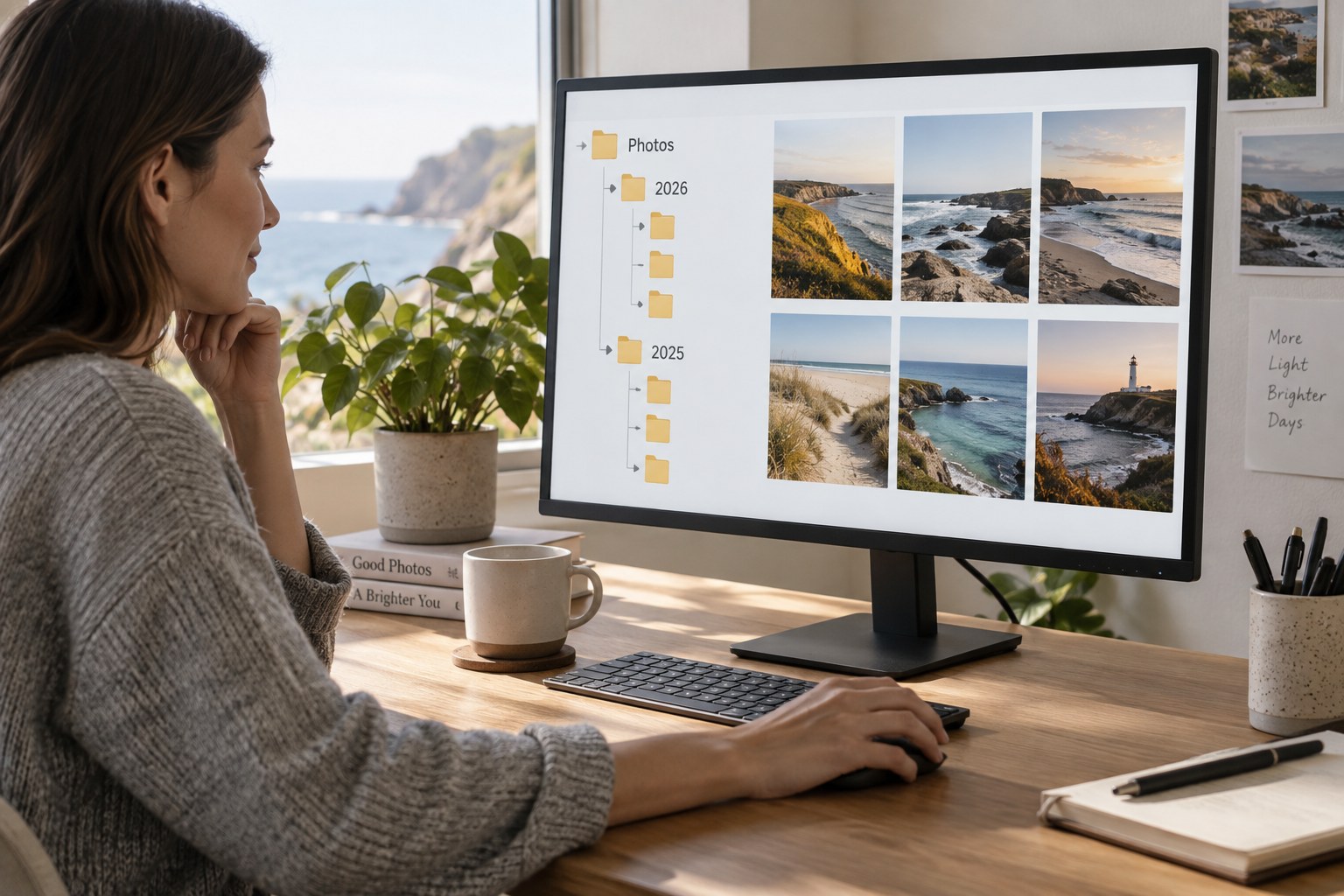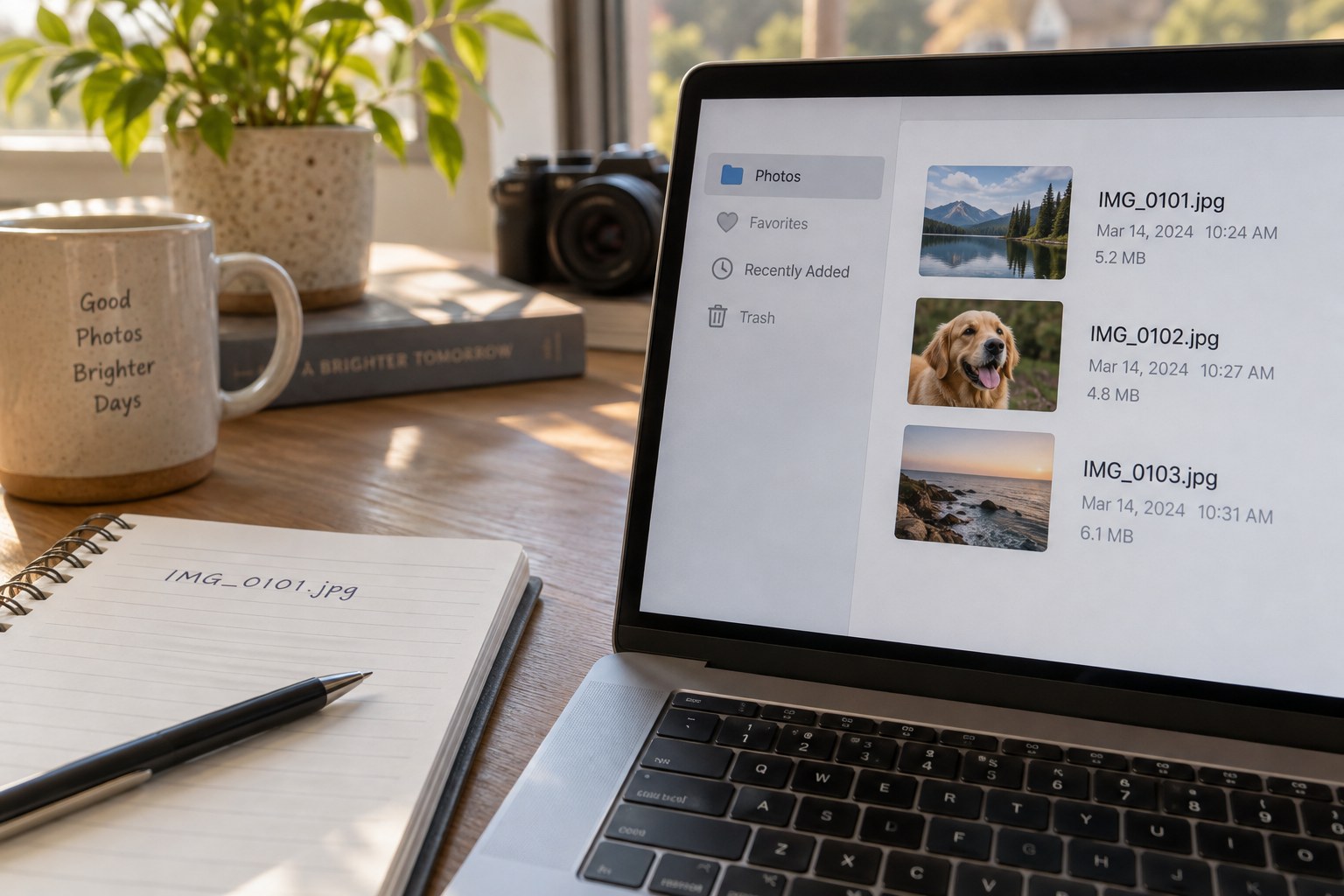
A photo library may contain more than the image files visible in a folder. A catalogue can hold edits, ratings and collection membership; sidecar files may carry other instructions; exported images may be stored separately. Before moving anything, identify the parts used by your application and how they refer to one another. Consult the current documentation for its supported move or relink process.
Write down the existing root folders and the new destination. Check available capacity, the destination filesystem and whether the drive will be used on more than one computer platform. Do not discover a compatibility problem after making the only copy. Confirm that an independent backup exists and can be opened before reorganising the working library.
Copy before removing
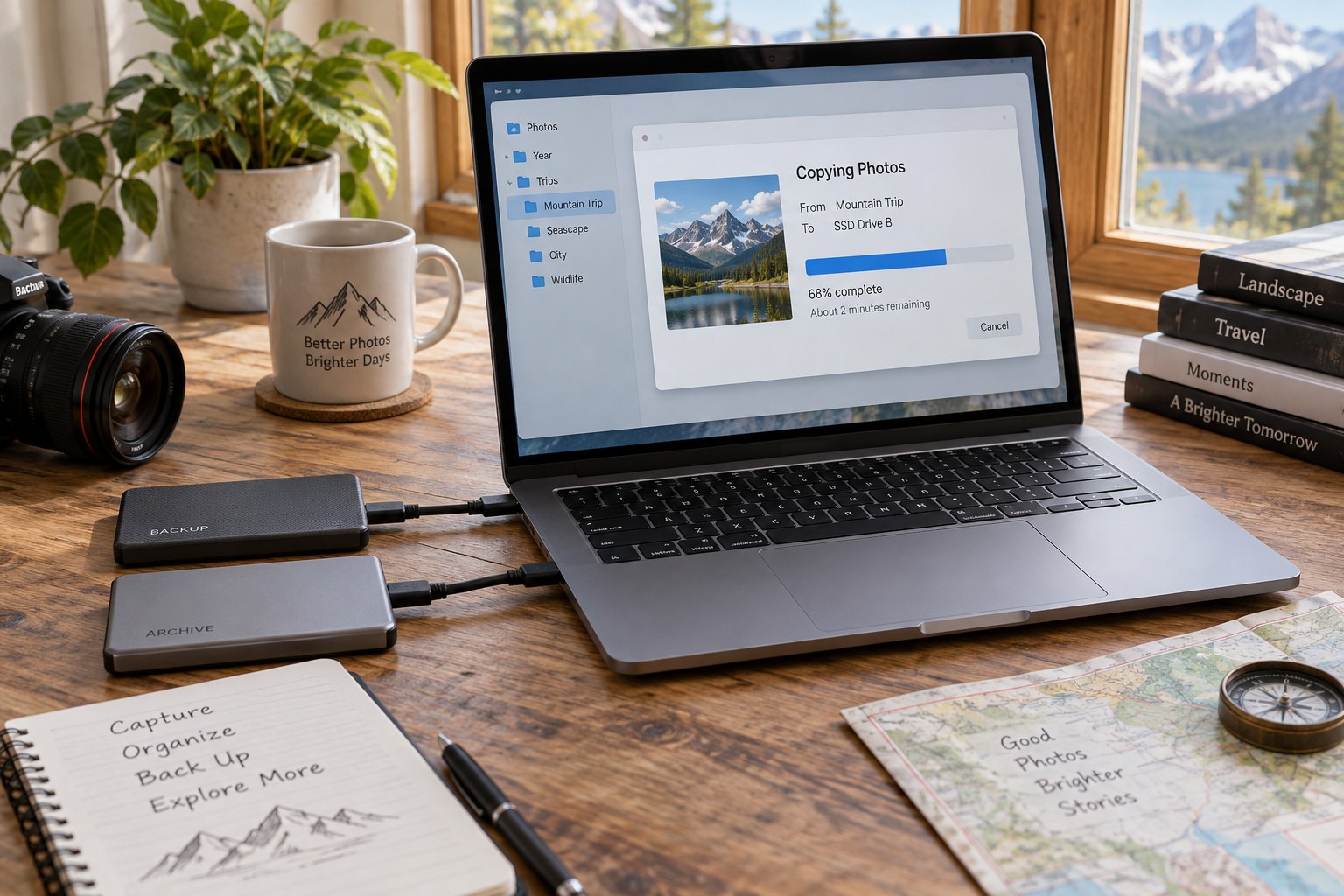
For a substantial library, copying to the new drive and verifying the result is easier to recover from than a destructive move. Keep the original location unchanged during the first transfer. Avoid importing the copied photographs as a completely new collection unless the software's documented workflow requires that; otherwise you may create a second catalogue of the same images without their existing relationships.
Copy the intended folder tree without casually renaming its internal levels. Preserve sidecars and other related files. If the application offers a managed relocation command, understand whether it copies or moves files and whether it updates references automatically. Close or pause processes that may write to the library during an external copy, following the application's guidance.
Do not judge completion only by the disappearance of a progress window. Compare the expected file and folder counts, investigate reported errors and verify important files at the destination. Hash comparison can establish whether copied bytes match, although it does not prove that the source files were already healthy. Keep the transfer log if the copying tool produces one.
Reconnect the application deliberately
Open the intended catalogue or library and use the supported method to point it at the new location. Check a representative range: recent and old images, RAW and JPEG files, edited photographs and pictures with sidecars. Open the actual original at full size rather than relying only on a cached preview. A preview can remain visible while the underlying file is missing.
Inspect ratings, collections and edit history where these are part of your workflow. Export a test image from the new location to confirm that the application can read the source and apply the stored work. If some folders remain missing, resolve that discrepancy before proceeding. Do not hide the warning by importing random copies from other locations.
Give the new drive a stable, recognisable name and record the new root path. Check how your operating system assigns drive letters or mount locations when other devices are connected. A path that works today can become confusing if a removable drive appears under a different identifier tomorrow.
Update the backup relationship
Review the backup configuration after the move. A job that still watches the old drive may report success while protecting none of the new work. Run the revised backup and restore a sample file into a separate test location. Check that the restored file opens, then remove only that test copy when finished.
Keep the old working copy until the new library and its backup have been verified. Label it clearly so that new imports do not accidentally continue there. When it is time to retire that copy, follow a deliberate removal plan and retain the migration note. The migration is complete when the photographs, their organisational records and the protection routine all point to the new working location—not merely when a folder has arrived on another disk.
When one folder appears to be missing
Suppose the new drive contains the expected image count, but the application marks one year's folder as unavailable. First compare the actual folder tree with the path the application expects. An extra enclosing folder or a changed drive name can explain the warning without any photographs being lost. Use the supported relink operation on the correct parent folder rather than relinking hundreds of images individually before understanding the structure.
If the folder is genuinely absent at the destination, return to the copy log and the preserved source. Check whether it was outside the root selected for transfer. Copy the missing material, verify it and then reconnect it. Do not solve the warning by exporting cached previews as replacements for originals that may still exist. This is why preserving the old working location until the migration is checked is more useful than immediately reclaiming its disk space.